Common virtualization errors and their solutions.
Error: VMX/SVM Not Supported
Error Message VMX/SVM is not supported
Video Tutorial
Solutions
1. Disable Windows Virtualization Features
Control Panel → Programs → Turn Windows features on or off
Uncheck: Virtual Machine Platform, Hyper-V
Restart PC
2. Disable Hypervisor
bcdedit /set hypervisorlaunchtype off
Restart PC.
3. Delete Hyper-V Files (Advanced)
System Files This deletes system files. Create backup first!
Run PowerShell as Administrator:
takeown /F "C:\Windows\System32\hvix64.exe"icacls "C:\Windows\System32\hvix64.exe" /grant *$((System.Security.Principal.WindowsIdentity::GetCurrent()).User.Value):Ftakeown /F "C:\Windows\System32\hvax64.exe"icacls "C:\Windows\System32\hvax64.exe" /grant *$((System.Security.Principal.WindowsIdentity::GetCurrent()).User.Value):Fdel "C:\Windows\System32\hvix64.exe"del "C:\Windows\System32\hvax64.exe"
Error: Enable/Disable Intel VT-X/AMD-V in BIOS
Enable/Disable Virtualization
- Enter BIOS: Restart PC, press BIOS key during startup
BrandBIOS KeyDellF2 or F12HPF10LenovoF1 or F2ASUSDel or F2AcerF2 or DelMSIDel
Enable/Disable Virtualization: Look for: Intel Virtualization Technology
Intel VT-X
AMD-V
SVM Mode
Virtualization Technology
Set to Enabled/Disable
Save: Press F10, confirm, restart
Verify Virtualization
Task Manager:
Press Ctrl+Shift+Esc
Performance tab
Check "Virtualization" at bottom
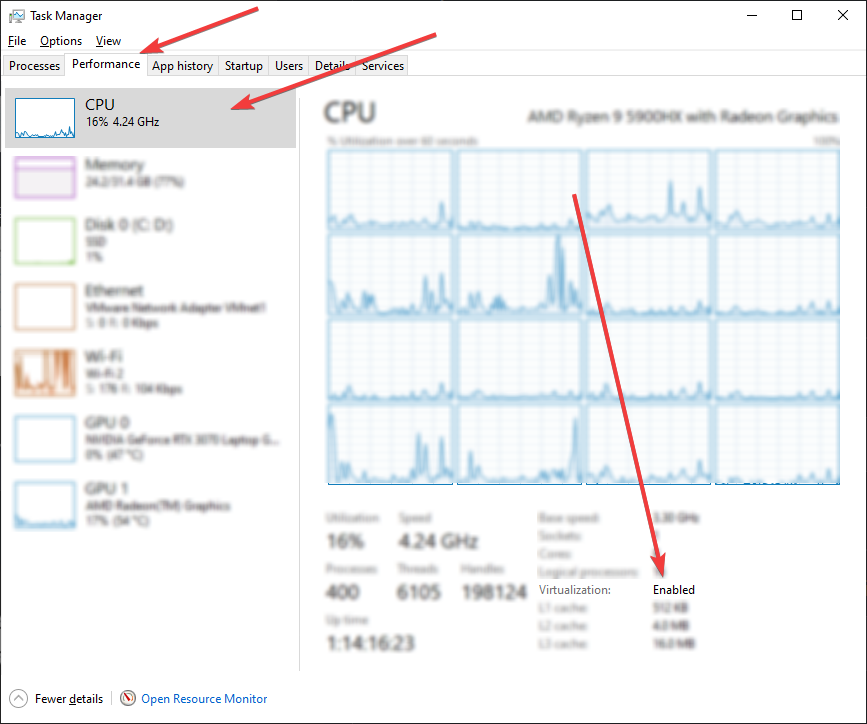
System Info:
Press Win+R → type
msinfo32Check "Virtualization Enabled In Firmware"
Error: PIN Not Set + Disable Hyper-V
Error Message Please make sure PIN is not set and manually disable Hyper-V
Solution
Disable PIN/Password: Remove Windows Hello PIN
Disable Virtualization in BIOS: Enter BIOS, disable VT-X/AMD-V
Delete Hyper-V Files:
del "C:\Windows\System32\hvix64.exe"del "C:\Windows\System32\hvax64.exe"
Re-enable Virtualization: Enter BIOS, enable VT-X/AMD-V again
Restart PC
Enable/Disable Hyper-V
Disable:
Press Win+R → type
optionalfeaturesUncheck "Hyper-V"
Click OK, restart
Enable:
Press Win+R → type
optionalfeaturesCheck "Hyper-V" (all components)
Click OK, restart
Common Issues
Virtualization Conflicts
Disable antivirus temporarily
Check for conflicting virtualization software
Windows Updates
Updates may re-enable Hyper-V
Repeat disable steps if needed
BIOS Updates
BIOS updates may reset virtualization settings
Re-check after BIOS update
For support, contact our team or check your manufacturer's documentation.